视图
Nuxt 提供了几个组件层,用于实现您应用程序的用户界面。
app.vue
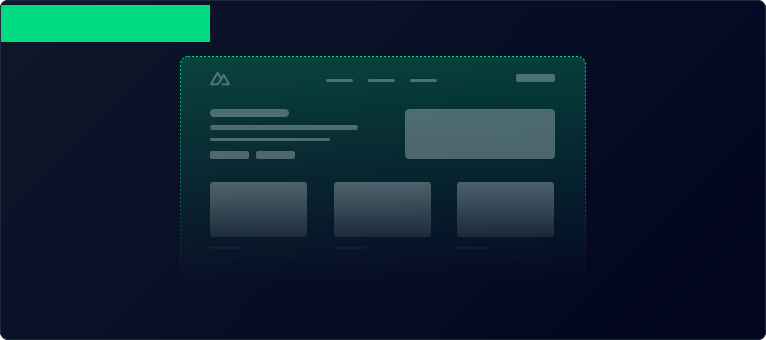
默认情况下,Nuxt 会将此文件视为应用程序的 入口点,并为应用程序的每个路由渲染其内容。
app.vue
<template>
  <div>
   <h1>Welcome to the homepage</h1>
  </div>
</template>
如果您熟悉 Vue,您可能会想知道
main.js 在哪里(通常是创建 Vue 应用的文件)。Nuxt 在后台处理了这一点。组件
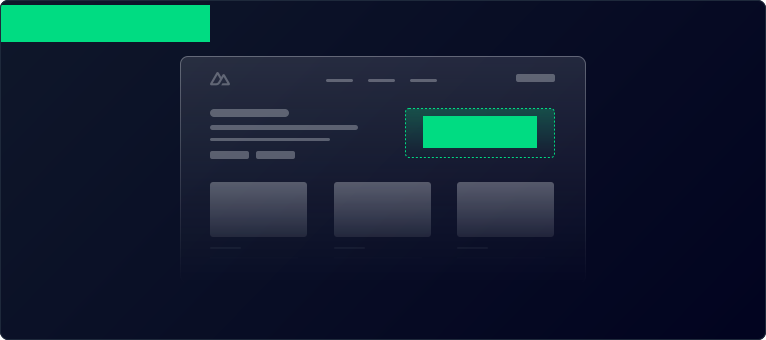
大多数组件是用户界面的可重用片段,例如按钮和菜单。在 Nuxt 中,您可以在 components/ 目录中创建这些组件,它们将在您的整个应用程序中 自动可用,而无需显式导入。
<template>
  <div>
    <h1>Welcome to the homepage</h1>
    <AppAlert>
      This is an auto-imported component.
    </AppAlert>
  </div>
</template>
<template>
  <span>
    <slot />
  </span>
</template>
页面
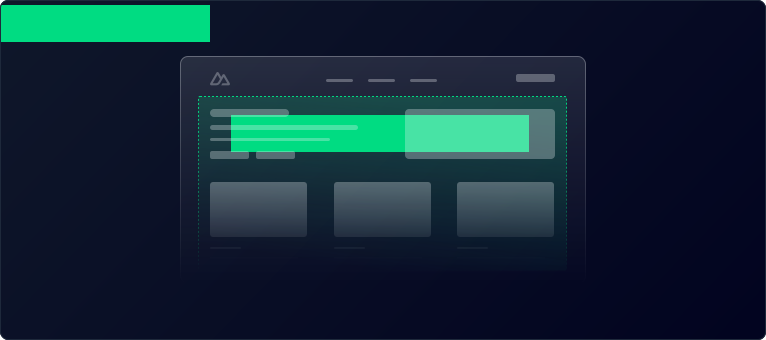
页面代表每个特定路由模式的视图。pages/ 目录中的每个文件都代表一个不同的路由,显示其内容。
要使用页面,请创建 pages/index.vue 文件,并将 <NuxtPage /> 组件添加到 app.vue 中(或者删除 app.vue 以使用默认入口)。现在,您可以通过在 pages/ 目录中添加新文件来创建更多页面及其相应的路由。
<template>
  <div>
    <h1>Welcome to the homepage</h1>
    <AppAlert>
      This is an auto-imported component
    </AppAlert>
  </div>
</template>
<template>
  <section>
    <p>This page will be displayed at the /about route.</p>
  </section>
</template>
布局
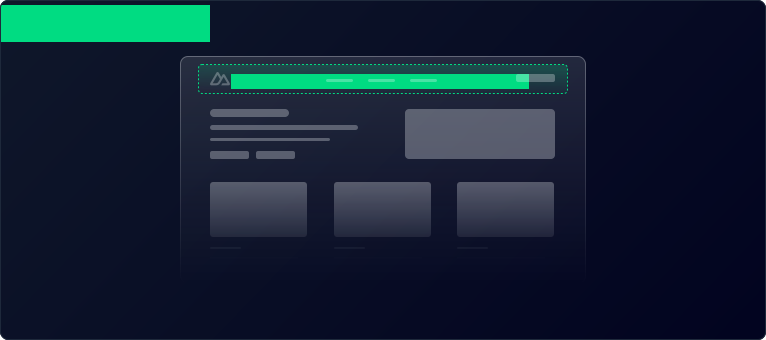
布局是页面的包装器,包含多个页面通用的用户界面,例如页眉和页脚。布局是使用 <slot /> 组件显示 页面 内容的 Vue 文件。默认情况下将使用 layouts/default.vue 文件。自定义布局可以作为页面元数据的一部分进行设置。
如果您的应用程序只有一个布局,我们建议使用带有
<NuxtPage /> 的 app.vue 代替。<template>
<div>
<NuxtLayout>
<NuxtPage />
</NuxtLayout>
</div>
</template>
<template>
  <div>
    <AppHeader />
    <slot />
    <AppFooter />
  </div>
</template>
<template>
  <div>
    <h1>Welcome to the homepage</h1>
    <AppAlert>
      This is an auto-imported component
    </AppAlert>
  </div>
</template>
<template>
  <section>
    <p>This page will be displayed at the /about route.</p>
  </section>
</template>
如果您想创建更多布局并了解如何在页面中使用它们,请在 布局章节 中找到更多信息。
高级:扩展 HTML 模板
如果您只需要修改
<head>,可以参考 SEO 和 meta 章节。您可以通过添加一个注册钩子的 Nitro 插件来完全控制 HTML 模板。render:html 钩子的回调函数允许您在 HTML 发送到客户端之前对其进行修改。
server/plugins/extend-html.ts
export default defineNitroPlugin((nitroApp) => {
  nitroApp.hooks.hook('render:html', (html, { event }) => {
    // 这将是 html 模板的对象表示
    console.log(html)
    html.head.push(`<meta name="description" content="My custom description" />`)
  })
  // 您也可以在此处拦截响应
  nitroApp.hooks.hook('render:response', (response, { event }) => { console.log(response) })
})